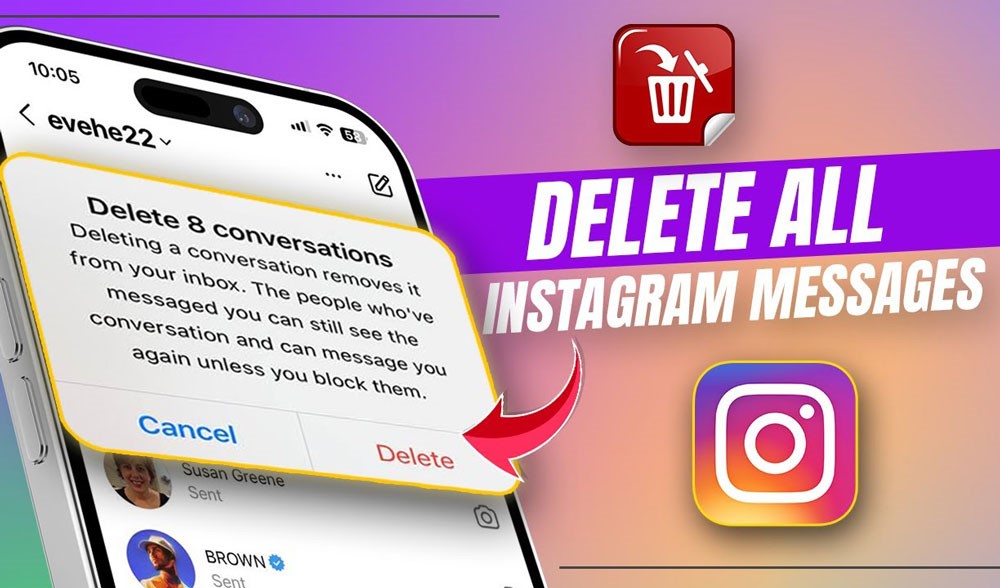
Instagram DMs can pile up faster than you realize, old chats, awkward texts, and accidental sends lurking in your inbox. A cluttered DM list can slow you down, make it harder to find important data, and even leave sensitive info exposed. If you’re craving a clean slate and wondering “How Do I Delete All Chats in Instagram in 2026?”, it’s time to master this art.
This guide cracks open every trick you need to take back control of your conversations in the year ahead. Let’s unlock the secrets.
Effective Methods to Mass Delete Instagram DMs 2026
Ready to reclaim your Instagram inbox like a boss? Whether you want to erase a single message, wipe out a whole conversation, or delete multiple chats at once, these simple methods make it easy and even a little satisfying.
Say goodbye to clutter and hello to a clean, fresh DM space you want to open.
· Unsend Messages (Deletes for Both Sides)
To delete all chats in Instagram 2026 or just specific messages and ensure they are removed from both inboxes, use the app’s Unsend feature. This is the only way to delete Instagram messages permanently for both you and the recipient.
Steps on Mobile
- Open Instagram and tap the paper airplane icon to go to Direct Messages (DMs).
- Open the chat that contains the message.
- Tap and hold the message you want to remove.
- Select “Unsend” from the menu.
- Confirm your choice.
Steps on Desktop (Instagram Web)
- Log in to Instagram.com and navigate to Messages.
- Open the relevant chat.
- Hover over the message, click the three-dot menu, and choose Unsend.
- Confirm the action.
Note: Even if the message was already seen, it will be removed from both inboxes. You can unsend Instagram messages, voice notes, images, stickers, and reactions the same way. However, screenshots are unaffected. This method is excellent for Instagram users to delete messages from both sides, acting like a vanish mode feature.

· Delete Entire Conversations (From Your View Only)
If you’re looking to delete all chats in Instagram 2026, removing full conversations is the way to do it. This method helps with Instagram conversation cleanup, but remember that it only eliminates chats from your account, not from the other person’s inbox.
Steps on Mobile
- Open Instagram and navigate to your DM inbox.
- Long-press the conversation you want to delete.
- Tap Delete to confirm.
- On iPhone: Swipe left on the chat, then tap Delete.
- On Android: Long-press and choose Delete from the pop-up menu.
Steps on Desktop
- Open the conversation.
- Click the info (ℹ️) icon at the top of the chat window.
- Select Delete Chat, then confirm.
This method helps delete entire Instagram threads, adhering to Instagram privacy tips, and facilitates overall data cleanup.
·Bulk Delete Instagram Messages Using Auto Clicker (Android Only)
If you’re trying to delete all chats on Instagram in 2026, the app does not offer an official option. However, for Android users, an effective workaround is to use an auto-clicker app to bulk delete Instagram messages automatically.
- Download Auto Clicker from the Google Play Store.
- Open both the Instagram and Auto Clicker apps.
- Enable Multi-Targets Mode in Auto Clicker.
- Create tap points:
- One to long-press a conversation for options.
- One to tap Delete.
- Adjust delay times to around 1000 milliseconds (1 second) between taps.
- Save and run the tap sequence to automate the deletion of multiple chats.
Additional benefits include simplifying and improving Instagram DM management.
How to Recover Deleted Instagram Messages (Bonus)
Once you delete or unsend Instagram messages, Instagram itself doesn’t offer any built-in way to recover them. However, if you still have a backup plan, third-party tools like KidsGuard Pro can help, provided it was installed on the target device before deletion.
- Create an account at the official KidsGuard Pro website.
- Install the app on the target Android device (requires prior setup).
- Log in and grant all necessary permissions for monitoring.
- Access the online dashboard, then navigate to Social Apps > Instagram to view both current and deleted messages.
- KidsGuard Pro also recovers data from WhatsApp, Facebook, Snapchat, browsing history, call logs, and more, making it a comprehensive solution for Instagram data cleanup 2026 and beyond.
Final Tips Before You Start to Delete All Chats in Instagram in 2026
If you’re planning to mass delete Instagram conversations in 2026, pause for a moment to learn some essential tips that will help protect your privacy and keep your data secure.
- No Undo: Once you permanently delete Instagram messages, they are gone for good, unless you’ve backed them up elsewhere. Instagram doesn’t offer a recovery option for deleted messages, so be sure before you hit delete.
- Unsend vs. Delete: It’s essential to understand the difference between unsend Instagram messages and deleting a chat. Using the unsend Instagram messages feature removes the message from both your inbox and the recipient’s, effectively on both sides. In contrast, deleting a chat or message only removes it from your view, not from the other person’s inbox.
- Screenshot Risk: Even if you unsend or delete Instagram messages permanently, the other person might have already taken a screenshot or saved your conversation. This is a privacy concern, especially if you’re clearing out sensitive messages or trying to maintain your Instagram privacy. Always be cautious about what you share, as unsending isn’t foolproof.
- Archive Instead: If you’re not ready to permanently delete your Instagram conversations, consider using Instagram’s archive feature. Archiving allows you to hide messages from your inbox without permanently deleting them, giving you more control over managing your conversation

Closing Remarks
Inbox chaos? Not anymore. Whether you’re unsending messages, deleting chats, or bulk clearing with automation, you’re all set to own your DMs in 2026. Choose your method, hit Delete, and enjoy the fresh, clutter-free vibe!
Still concerned about deleting multiple Instagram chats at once in 2026? What’s the biggest DM cleanup challenge you’ve faced on Instagram? Which one is your favorite trick for keeping your Instagram inbox organized? Have you ever regretted deleting an Instagram message?
How did you handle it? Share your inbox magic in the comments about “How Do I Delete All Chats in Instagram in 2026?”; your tip might spark someone’s next great idea!
How do I delete all chats in Instagram 2026?
Instagram doesn’t offer a “delete all” button, but Android users can use Auto Clicker to automate the process.
Can I delete messages for both people?
Yes, by using the Unsend feature, which removes Instagram DMs from both sides.
What’s the difference between Delete and Unsend?
Delete only removes the chat from your view. Unsend deletes the message for both sender and recipient.
How to delete multiple messages on Instagram DM?
While Instagram doesn’t offer a native bulk delete feature, Android users can utilize an Auto-Clicker app to automate the deletion of multiple chats quickly.
Will the person know I deleted the message?
If you use the Unsend feature on Instagram, the message disappears without a trace. But if they’ve seen it or taken a screenshot, it’s already saved on their end.