Sometimes, you may have found yourself needing to access Instagram from your PC for work or leisure, only to be met with the annoying “can’t log in to Instagram on PC” error.
Perhaps you’re trying to upload a vital post, reply to customer messages, or simply scroll through your friends’ feeds in comfort, but the Instagram login page won’t cooperate. This disheartening situation often brings up questions like, “Why isn’t my Instagram working on my computer?” or “Has my account been hacked?”
If you’re facing these challenges and seeking “Why can’t log in to Instagram on PC; what are the reasons & solutions?” below, we’ll provide practical, effective keys to get you back online.
Summarizing of Reasons & Solutions for Log in to Instagram on PC Problem
| Reason | Description | Solutions |
| Incorrect Login Credentials | Username or password entered incorrectly | Check Caps Lock, type carefully, copy-paste from text editor |
| Unstable Internet Connection | Poor or no internet connectivity | Test other websites, restart router/modem, switch network, disable VPN temporarily |
| Browser-Related Problems | Cache, outdated browser, or conflicting extensions | Clear cache & cookies, update browser, try incognito mode, use a different browser |
| Forgotten Password instagram | Password forgotten or incorrect | Use “Forgot password?” link to reset via email or phone |
| Two-Factor Authentication | Extra security step requiring verification code | Enter correct code from SMS/authenticator app, use backup codes |
| Instagram Server Issues | Temporary outages or maintenance on Instagram’s side | Check outage status (For example DownDetector), wait for resolution |
| Account Restrictions/Suspension | Account suspended due to violations or suspicious activity | Follow Instagram’s appeal or recovery process |
| Firewall or Antivirus Blocking | Security software blocking Instagram access | Temporarily disable firewall/antivirus, add Instagram to allowed list |
| Instagram Desktop App Issues | Problems with official Instagram Windows app | Update, reinstall app, or use web browser instead |
| DNS-Related Problems | DNS cache or server issues causing website loading problems | Flush DNS cache (ipconfig /flushdns), change DNS to public servers like Google or Cloudflare |
| Incorrect System Date/Time | Wrong system time causing security certificate errors | Set date, time, and timezone automatically and correctly |
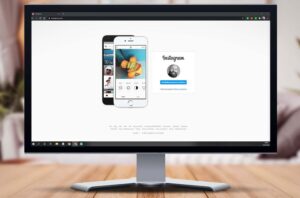
Why Can’t I Log in to Instagram on My PC? (Common Causes and Solutions)
Trouble logging into Instagram on your PC can stem from various sources, ranging from simple internet connection glitches to more complex software issues. Understanding the root cause is crucial to resolving the issue. Here, we’ll comprehensively explore these reasons and offer practical solutions for can’t Log in to Instagram on PC.
1. Incorrect Login Credentials
One of the most common and basic reasons for login issues with the Instagram desktop version is entering the username or password incorrectly. Even a tiny typo can prevent you from logging in.
- First, check if your Caps Lock is on; it might be activated.
- Carefully enter your username and password, one letter at a time. Pay close attention to capitalization and any special characters.
- If your password is complex, try typing it in a text editor first, then copy and paste it into the password field.
2. Unstable Internet Connection
Without a stable internet connection, accessing Instagram or any other website is impossible. Internet connection issues can easily prevent you from logging in to Instagram on a PC.
- Verify your internet connection by trying to open other websites.
- Restart your modem or router by unplugging it for a few minutes and then plugging it back in.
- If you’re on Wi-Fi, try connecting via an Ethernet cable or switching to a different Wi-Fi network.
- If you’re using a VPN, temporarily turn it off and try again.
3. Browser-Related Problems
Browser compatibility is another significant factor. Sometimes, your web browser itself might be having issues with Instagram.
- Clear cache and cookies: This often resolves many website loading issues. Go to your browser’s settings (usually under “Privacy & Security” or “History”) and clear your Browse data.
- Update your browser: Ensure your browser (such as Chrome, Firefox, or Edge) is up to date with the latest version. Older browsers might not be compatible with Instagram’s security standards.
- Use Incognito/Private Mode: Opening Instagram in your browser’s incognito mode can help rule out extensions that may be causing issues. If you can log in this way, one of your extensions is likely the culprit.
- Try a different browser: Attempting to log in with a different browser can help determine if the problem lies with your current browser.
4. Forgotten Password and Resetting It
If you can’t remember your password, you’ll likely face Instagram login problems and be unable to log in to Instagram on your PC. The password reset process is specifically designed for this purpose if you face the Can’t Log in to Instagram on PC problem.
- On the Instagram login page, click “Forgot password?”.
- Follow the instructions provided. Instagram will send a reset link to your registered email or phone number. This is a crucial step in recovering an Instagram account.
5. Active Two-Factor Authentication instagram
If you’ve enabled two-factor authentication, logging into your account requires entering a verification code in addition to your password.
- Ensure you enter the correct code sent to your phone (via SMS) or authentication app (such as Google Authenticator) within the specified timeframe.
- If you don’t have Access to your phone, use the backup codes you received when you initially set up two-factor authentication.
6. Instagram Server Issues or Temporary Outages
Occasionally, Instagram may not work on PC due to technical issues on Instagram’s end. This could include server maintenance or temporary outages. These types of Instagram login issues on PC are beyond your control.
- Check websites like DownDetector.com to see if other users are reporting similar issues.
- Be patient. The Instagram team typically resolves these issues within a few hours. Afterward, you should be able to log in to Instagram on a PC again, and the problem should be resolved.
7. Account Restrictions or Suspension
If your Instagram account has been suspended due to policy violations or suspicious activity, you won’t be able to log in. In such a case, you’ll experience an Instagram login failure on your PC.
- If you receive a message indicating your account is suspended when trying to log in, follow Instagram’s instructions for appealing the decision or recovering your account.
8. Firewall or Antivirus Settings
Your firewall settings or antivirus software might be mistakenly blocking Instagram’s Access to the internet. This can lead you to think, “I can’t log in to Instagram on PC.”
- Temporarily turn off your firewall or antivirus software and try logging in again.
- Add Instagram to the allowed list (allowlist) in your security software’s settings to resolve the problem.
9. Issues with the Instagram Desktop App
If you’re using the official Instagram app for Windows for Instagram desktop login rather than a web browser, the problem might lie with the app itself. This could also be why you were denied Access to Instagram on your computer.
- Ensure the app is updated to the latest version.
- Uninstall and then reinstall the app from the Microsoft Store.
- As a temporary workaround, try logging in to Instagram via your web browser to see if the issue persists. This will help you troubleshoot your Instagram login and pinpoint the source of the problem.
10. DNS-Related Problems
DNS (Domain Name System) servers are responsible for translating website names into IP addresses. Problems in this area can prevent websites from loading correctly.
- Flush your computer’s DNS cache. On Windows, you can open Command Prompt as an administrator and type ipconfig /flushdns.
- Consider changing your DNS settings to public DNS servers, such as Google’s (8.8.8.8 and 8.8.4.4) or Cloudflare’s (1.1.1.1 and 1.0.0.1).
11. Incorrect System Date and Time
Incorrect date and time settings on your computer can cause issues with secure connections (SSL/TLS) to websites, including Instagram. This can prevent you from being able to fix Instagram login errors by causing your system to trust outdated security certificates, leading to you doubting why you can’t log in to Instagram on your PC.
- Ensure your system’s date, time, and time zone are set automatically and correctly. Go to your date and time settings in Windows or macOS and enable the “Set time automatically” option.

Conclusion
The “Can’t sign in to Instagram on desktop” issue can stem from a variety of causes, ranging from simple login credential errors to more complex software issues or even problems with Instagram’s servers.
By following the comprehensive and up-to-date guide provided, most of these Instagram login issues are fixable. With a bit of patience and troubleshooting, you can easily access your account and enjoy Instagram on your personal computer again.
Were these solutions helpful in resolving your issue? Which of these methods worked best for you? Are you experiencing any other Instagram login issues not addressed in this article? Comment us to help improve the “Can’t Log in to Instagram on PC; What Are the Reasons & Solutions?” guide!
Why can’t I log in to my Instagram account on my PC?
You may be experiencing login issues due to an incorrect username or password, browser compatibility problems, or a poor internet connection.
What should I do if I forget my Instagram password?
Click on “Forgot password?” on the login page, enter your email or username, and follow the instructions sent to your email to reset your password.
How can I clear my browser’s cache and cookies for Instagram?
Go to your browser’s settings, find the privacy or history section, and select the option to clear browsing data. Ensure that you check the boxes for cookies and cached images and files.
Is there a way to recover a hacked Instagram account?
Yes, you can try recovering your account by using the “Need more help?” link on the login page or by following Instagram’s recovery process via email or SMS verification.
What should I do if Instagram is down and I’m unable to log in?
Check Instagram‘s official Twitter account or websites like DownDetector for service status updates. If it’s a widespread issue, wait until the service is restored.