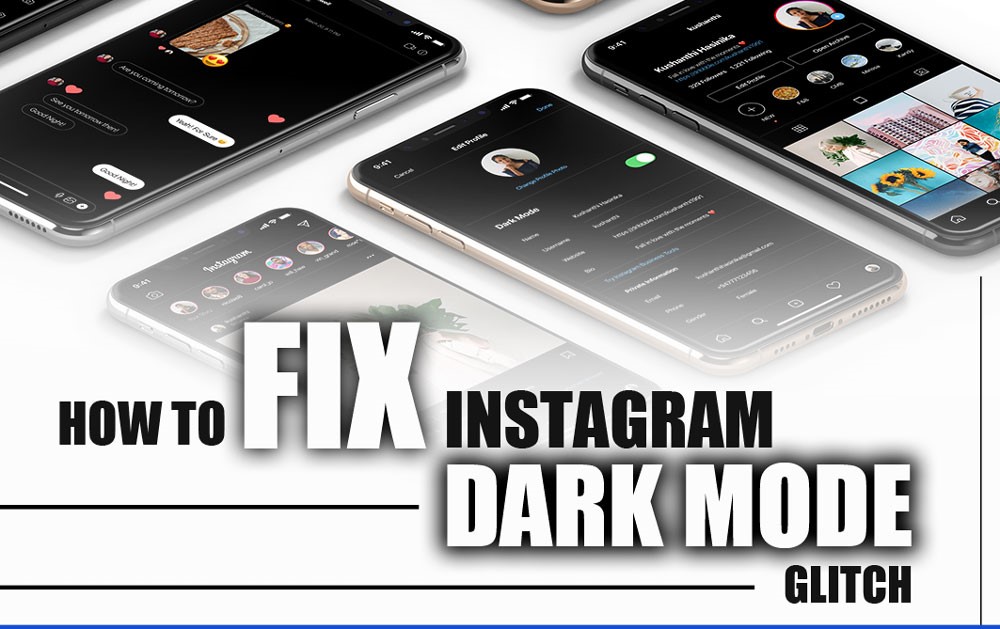
How to fix the Instagram dark mode glitch is a common question when the screen unexpectedly brightens in certain areas during dark mode or abruptly switches from dark to light theme without user input.
This isn’t just a minor annoyance; it disrupts how you use the platform and can affect different accounts in unpredictable ways. Have you experienced this issue? Let’s fix it fast and simple. Check out these easy steps to get your app looking right again.
Step-by-Step Guides to Fix Instagram Dark Mode Issues
Here’s a straightforward, step-by-step guide covering the most common issues and easy steps to troubleshoot Instagram dark theme issues and help you quickly identify the cause of the problem and get your app back to normal.
Meta creates the feature and offers a darker interface that helps reduce eye strain, making it ideal for using the app in dim lighting or at night. So if you curious about Instagram dark theme not working, just be with us to continue:
1. App Bugs or Software Glitches
When it points to fix the Instagram dark mode glitch, bugs and glitches come across. New updates sometimes introduce bugs into the Instagram app that interfere with the dark mode theme. These bugs can cause the mode to turn off randomly or not sync with your device’s theme.
| Problem | Symptom | Fix | Steps to Follow |
| Software glitch | Dark mode turns off randomly | Update the Instagram app | 1. Go to your device’s App Store (iOS) or Google Play Store (Android)
2. Search for Instagram 3. Tap Update if available |
| Incompatibility | The app doesn’t follow system-wide dark mode settings | Manually enable dark mode from the device or app settings | 1. Go to Settings on your phone
2. Tap Display or Appearance 3. Choose Dark Mode manually or adjust the system theme settings |
| Recent update conflict | The app behaves erratically after an update | Wait for a patch or rollback to a previous stable version | 1. Report the issue to Instagram via Settings > Help > Report a Problem
2. Follow Instagram’s Help Center for updates 3. If urgent, consider rolling back via APK (Android only – do so with caution) |
2. Accumulated Cache or App Data
A corrupted cache can affect how Instagram loads your preferences, including the dark mode setting. Also, cache files accumulate over time and can cause visual bugs on Instagram. To continue, there is a table to address Instagram’s dark theme display errors.
| Problem | Symptom | Fix | Steps |
| Corrupt cache | Dark mode doesn’t activate properly | Clear app cache | 1. Go to your device Settings.
2. Tap on Apps or Application Manager. 3. Find and select Instagram. 4. Tap on Storage. 5. Tap Clear Cache. 6. Restart Instagram and check dark mode. |
| Outdated data | The Instagram theme setting is stuck | Reinstall the app to reset | 1. Uninstall Instagram from your device.
2. Restart your device. 3. Go to the App Store or Google Play Store. 4. Download and install Instagram again. 5. Open Instagram and log in. Set the theme again. |
| Storage overload | Laggy or slow theme transition | Free up Storage, precise app data | 1. Go to device Settings.
2. Tap on Apps or Application Manager. 3. Select Instagram. 4. Tap Storage. 5. Tap Clear Data or Clear Storage (this will reset app settings). 6. Delete unused apps or files to free up device storage. 7. Restart Instagram and try again. |
3. Memory Conflicts
Your phone may be preventing theme changes due to temporary memory conflicts. Glitches in system memory or background processes can block UI updates. So the Instagram dark mode glitch happened that we talk about fixing steps below:
| Problem | Symptom | Fix | Steps |
| System overload | App UI not updating correctly | Restart device | 1. Press and hold the power button.
2. Select Restart or Power Off. 3. Wait for the device to reboot entirely. 4. Open Instagram and check if the issue is resolved. |
| Background conflict | Dark mode doesn’t reflect instantly | Reset phone memory | 1. Close all running apps.
2. On Android, go to Settings > Apps > Instagram > Force Stop. 3. On iPhone, swipe up and remove Instagram from recent apps. 4. Restart the phone to clear temporary memory. 5. Open Instagram and test dark mode. |
| App freeze | Instagram is not responding to changes | Reboot to refresh the system | 1. Press and hold the power button.
2. Select Restart or Power Off. 3. If needed, wait a few minutes before turning the device back on. 4. Open Instagram and try making changes again. |
4. Damaged Installation Files
A fresh install eliminates bugs from corrupted or outdated files. Over time, installation files can become damaged, causing Instagram theme issues, including dark mode failure. What afixing the Instagram what to do to fix the Instagram dark mode glitch?
| Problem | Symptom | Fix |
| Bugged install | Dark mode is not available in the settings | Reinstall Instagram |
| App misbehavior | Instagram not saving theme changes | Remove & install a clean version |
| Compatibility error | Crashes during theme switch | Update during reinstall |
5. Dark Mode Setting Conflicts
Sometimes, the dark mode setting itself needs a reset to function correctly. Frequent theme switching or system/app setting conflicts can prevent Instagram from syncing properly. Understanding these scenarios can help you take the proper steps to Fix the Instagram dark mode glitch once and for all.
| Problem | Symptom | Fix | Steps |
| Sync error | Instagram does not match the device theme | Disable / re-enable dark mode | 1. Open Instagram.
2. Go to Settings > Theme. 3. Turn off dark mode. 4. Close and restart the app. 5. Re-enable dark mode. 6. Check if Instagram matches the device theme now. |
| Setting conflict | Manual and system settings clash | Reset theme preference | 1. Open Instagram Settings.
2. Navigate to Theme or Display settings. 3. Set the theme to “System Default” or “Follow System.” 4. Restart Instagram. 5. Toggle dark mode off and on again if needed. |
| App confusion (UI bug) | Theme toggles unpredictably | Use manual override | 1. Disable “Follow System” mode.
2. Manually select Dark Mode or Light Mode inside Instagram. 3. Avoid switching system themes frequently. 4. Restart the app and verify the selected theme sticks. |
6. Account or Device-Specific Issues
When all else fails, the glitch may be linked to your Instagram account or unique device setup. Server-side issues or account-specific bugs can persist regardless of updates or resets. If you want to resolve the Instagram night mode bug and restore the classic black background, here are common problems, symptoms, and effective fixes you can try.
| Problem | Symptom | Fix | Steps |
| Account-specific glitch | Dark mode is broken only on your account | Contact Instagram support | 1. Take screenshots showing the dark mode problem.
2. Write a clear, detailed description. 3. Open the Instagram app. 4. Go to Profile > Settings > Help > Report a Problem. 5. Attach screenshots and description.6. Submit the report and wait for a response. |
| Device-specific bug | Dark mode fails on one device only | Test on a different device | 1. Log in to your Instagram account on another device.
2. Check if dark mode works there. 3. If it does, the issue is device-specific. 4. Try restarting or resetting the problematic device. 5. Consider reinstalling Instagram on that device. |
| Long-term glitch | The issue persists after all troubleshooting | Wait for the backend fix after a report | 1. Submit a bug report to Instagram via the Help Center or app.
2. Keep Instagram updated. 3. Monitor community forums or Instagram announcements for fixes. 4. Retry dark mode after updates are applied. |
7. Instagram Navy Blue Background Problems
Some users have reported that their Instagram app background unexpectedly changes from the usual dark black to a navy blue shade. This change can be inconsistent, sometimes affecting only certain accounts on the same device or appearing after the app restarts. Let’s go to see how to Fix the Instagram dark mode glitch in this step.
| Problem | Symptom | Fix |
| One account only | Navy blue background | Restart app/switch account |
| After reboot | Navy blue everywhere | Restart the device/toggle the dark mode |
| Temporary fix | Black returns briefly | Reinstall Instagram |
| Ongoing issue | Problem persists | Update app/report bug |

How to Turn on Instagram Dark Mode?
Follow these straightforward steps to enable dark mode and enjoy a more comfortable browsing experience, whether you’re using an iPhone or Android device.
Top of Form
Bottom of Form
- Open Instagram and go to your profile page.
- Tap the three horizontal lines (menu) in the top right corner.
- Select Settings and Privacy.
- Scroll down and tap “Theme” or “Appearance” (on some devices, this may be under “Accessibility”).
- Choose Dark Mode or toggle the Dark Mode option.
- Note: On some Android devices, Instagram may follow your phone’s system-wide dark mode setting, so enabling it in your device settings can also activate it in the app.
Ending Remarks
Learning how to fix the Instagram dark mode glitch is essential to restoring a seamless and comfortable app experience. By following the right approach, you can troubleshoot effectively and resume smooth browsing. If issues continue, keeping Instagram informed ensures they’re aware and can improve things for everyone.
Have you encountered Instagram’s dark mode glitch or the unusual navy blue background? How did you resolve the issue, or are you still experiencing problems? Please share your tips or frustrations in the comments, and let’s work together to figure this out!
Why is Instagram dark mode not working?
This often happens due to app bugs, outdated versions, or cache issues.
Why is Instagram dark mode not black?
A visual glitch can cause the dark mode background to show as navy blue.
How do I enable dark mode on Instagram for iPhone?
Go to your Instagram profile, open the menu, and then find the dark mode setting in the Settings and Privacy section.
How do I enable dark mode on Instagram for Android?
Access the Instagram menu from your profile, then look for the dark mode option under Settings and Privacy.
Does Instagram dark mode sync with my phone’s system settings on Android?
Yes, on Android, Instagram can automatically follow your system-wide dark mode setting if enabled.